
Ray tracing is more than a buzzword—it’s the standard of excellence for simulating hyper-realistic lighting, reflections, and shadows in new-generation video games. From submerging in Cyberpunk 2077, Control, or Call of Duty, activating ray tracing can literally redefine your in-game graphics. The twist is: ray tracing is extremely processor-intensive. With an inadequately configured computer, you risk swapping graphics glories for dreaded frame drops.
So, how to optimize gaming PC for ray tracing without losing performance? Let’s break it down step by step in this thorough yet easy-to-follow guide.
What is Ray Tracing and Why Does It Matter?
Ray tracing emulates the behavior of light in the physical world. Rather than approximating reflections and shadows, it simulates how light rays interact with objects in a scene. This entails:
. More accurate shadows
. Realistic reflections
. Natural lighting changes
The payoff? A film-like, immersive experience. But that level of realism takes a lot out of your GPU, CPU, and system as a whole. That’s why optimization is paramount.
1. Begin With the Correct Hardware
First and foremost, ray tracing needs a graphics card that can handle it. Here are your best options:
NVIDIA RTX Series: RTX 2060 and higher (RTX 30 and 40 series support it best)
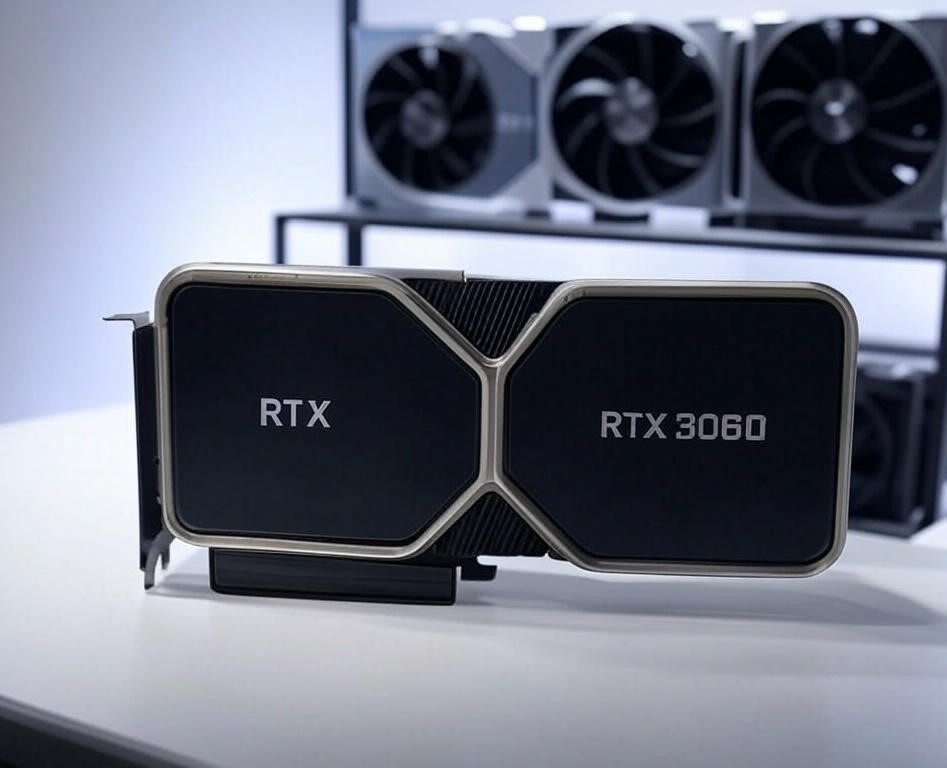
AMD Radeon RX 6000 Series: RX 6600 and above
Older GPUs may technically support ray tracing but struggle to provide silky smooth gameplay.
CPU Power Also Counts
Ray tracing relies largely on your GPU, but your CPU must keep pace as well, particularly in open-world or CPU-reliant titles. Try for:
. Intel i5 (10th gen or higher) or
. AMD Ryzen 5 3600 or higher
Lower specs could lead to bottlenecking.
2. Update Your Drivers
It’s simple-sounding, but buggy drivers can kill ray tracing performance. NVIDIA and AMD churn out frequent updates that enhance ray tracing support.
Here’s how to do it:
. Go to your GPU maker’s website
. Get the most recent Game Ready or Adrenalin drivers
. Use software like GeForce Experience or AMD Software to install and automatically update
This easy tweak can sometimes increase FPS by 5–10%.
3. Optimize In-Game Settings Sensibly
Most contemporary games allow you the freedom to manage performance and image. If you’re curious about how to optimize gaming PC for ray tracing in the real world, this is where it occurs.
Enable DLSS or FSR
. DLSS (NVIDIA) or FSR (AMD) leverages AI to render at reduced resolutions without compromising image quality.
. This can effectively double your FPS without significantly damaging visual quality.
Apply Ray Tracing Discerningly
You don’t have to have all ray tracing effects on at all times. Experiment turning on just:
. Ray-Traced Shadows or
. Ray-Traced Reflections
This allows you to have better graphics without running your GPU full-out.
Lower Other Settings
Reduce other settings such as:
Motion Blur
. Volumetric Lighting
. Ambient Occlusion
. Depth of Field
This releases GPU power for ray tracing.
4. Adjust Windows and System Settings
The OS itself can take a bite out of your gaming horsepower. Let’s tidy that up.
Enable Game Mode in Windows
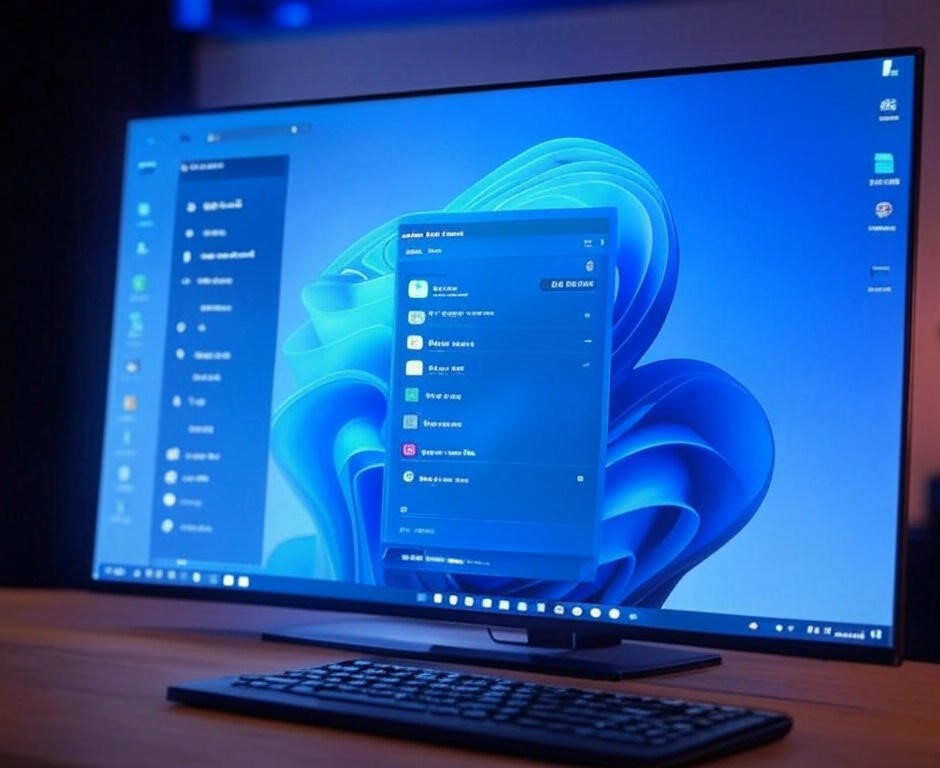
. Go to Settings > Gaming > Game Mode and flip it On
. This instructs Windows to give gaming tasks priority
Disable Background Apps
. Close apps such as Discord, Chrome, and Spotify during gaming
. Kill unused tasks using Task Manager (Ctrl + Shift + Esc)
Each additional bit of RAM and CPU assists when ray tracing is active.
Graphics Settings to High Performance
. Settings > System > Display > Graphics Settings
. Add your game and select “High Performance” GPU for optimal allocation
5. Watch Temperatures and Clock Speeds
Ray tracing pushes your GPU more than normal. Overheating can slow down performance unexpectedly.
Use Tools Such As:
. MSI Afterburner
. HWMonitor
. NZXT CAM
Maintain GPU temps below 85°C and CPU temps below 80°C for stability.
6. Overclock with Care
If you’re sure of yourself and have an idea what you’re doing, a humble GPU overclock can provide a 5–10% performance improvement—just sufficient to make ray tracing more fluent.
Use Afterburner or Manufacturer Tools
. Raise GPU core clock and memory clock incrementally
. Always keep an eye on temperatures and check stability with 3DMark or Heaven Benchmark
Warning: Overclocking may void warranties or harm components if done blindly. Only attempt this if you’re seasoned.
7. Upgrade Your Storage
Fast load times = smoother transitions between gameplay and less stuttering.
SSD vs HDD
. SSDs (particularly NVMe) cut game load times dramatically and enhance asset streaming
. Some ray tracing games feature big texture files—SSD allows your system to keep pace
8. Think About Game-Specific Optimizations
Every game does ray tracing differently. Let’s consider a couple of examples:
Cyberpunk 2077
. Use DLSS Performance mode
. Turn on Ray-Traced Shadows, bypass Ray-Traced Global Illumination for improved FPS
Minecraft RTX
. Reduce your render distance
. Turn off resource-heavy shaders when not needed
Check Reddit forums or the Steam Community for tweaks specific to your favorite game.
9. Use Resolution Scaling
Playing at 1440p or 4K? You’re making your GPU sweat.
Try These Tricks:
. Use in-game dynamic resolution scaling
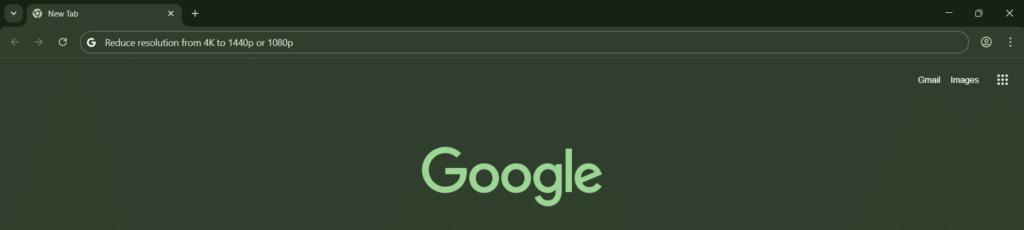
. Reduce resolution from 4K to 1440p or 1080p
. Enable DLSS (again, it’s a game-changer)
The resolution drop won’t be too noticeable—but the performance gain is real.
10. Keep Everything Clean
Dust Can Kill Performance
Dusty fans = high temperatures = throttling. Clean your PC on a regular basis with:
. Compressed air
. Soft brushes
. Cable management to provide airflow
Free Up Storage
Keep at least 10–15% of your drive space free. Full drives make everything slower.
Conclusion
Ray tracing can completely transform how you play games—but only if your rig can handle it. By learning about your hardware, tweaking game and system settings, and taking advantage of clever features like DLSS and background app management, you can enable ray tracing without murdering your FPS.
So, how to optimize gaming PC for ray tracing in a nutshell? It’s all about balance. Don’t try pushing for ultra-everything if your system can’t handle it. Start with modest expectations, experiment, tweak, and continue to tune. That way, you enjoy the jaw-dropping visuals and the silky-smooth gameplay you’re entitled to. And if you’re a console gamer, read our guide on How to Optimize Gaming Console to get the best out of your setup too.
Happy gaming—and may your reflections always be razor-sharp.